Instagram has grown to a whopping 1 billion monthly active users. The competition on the platform is palpable. If you’re wondering how you can shine in this overcrowded space, you’re not alone.
Growing your Instagram following organically can be a challenge, but it’s not impossible. In this blog post, we’ll share with you some foolproof ways to take your Instagram game to the next level.
Get to know your target audience
The number one rule for marketing is to know who you’re posting for. You’re not supposed to please everyone. If you do, you’ll end up pleasing no one. Remember, the only truly valuable Instagram followers are the people who care about and engage with your brand.
Start by getting to know your audience well. Once you do, it will be easier for you to create content in a way that would appeal to the right people.
Don’t compromise on content
Today, people use Instagram not just to connect with their friends, but also to connect with their favorite brands and shop online. In fact, 80% of Instagram users follow at least one business account. That’s a lot of people who could potentially see and engage with your brand. followers to pause and engage with your posts.
Content is the lifeblood of your Instagram account, so make sure that you create interesting posts that will capture the attention of your target audience. Remember, there’s a lot more noise on Instagram feeds these days. If you want to stand out, then you need good quality content.
Consistency is key
If you have no plans of spending money and still curate a high-quality audience that will connect with your brand, then you need to post consistently.
According to a study that was conducted by Buffer, profiles that posted seven or more times a week gain more followers faster than those that post less frequently.
Start by planning your content strategically. Curate your Instagram feed and schedule them in advance. This will not only help you reach your target audience at peak times, it also ensures that everything fits together visually before you post.
Also, creating a consistent brand story and aesthetic is a must. You want to give your grid a consistent look and feel. Your posts should easily be recognizable at a glance.
Embrace Instagram Stories
Instagram stories are great because they help you stay top of mind for your audience. It allows you to maintain visibility in your followers’ feeds and gives you an opportunity to be creative with your content.
There is so much potential with Instagram stories to engage with your followers and attract new ones. Plus, there are plenty of fun features to experiment with such as chat stickers, questions, poll, filters etc. Utilize these features to keep your content fresh.
Use quality hashtags
Hashtags could be your best bet for growing a fast following on Instagram. Use hashtags in your posts or stories to expose them to people who aren’t still following you. The right hashtags can expose your image to a larger and more targeted audience.
Find out what hashtags are most popular among your target audience and your industry. It’s also a good idea to create a unique hashtag that reflects your brand. Don’t forget to use them in your posts and stories.
Collaborate with influencers
One effective way to grow your reach is following is to collaborate with influencers in your niche. Don’t be afraid to reach out to see if you can work together.
One survey suggests that 60% of users say they’d follow a brand on Instagram after seeing it promoted by an influencer they trust.
Run contests and promotions
If you want to boost your follower count organically in a short period of time, running contests is a great place to start. In fact, an Instagram contest or giveaway can help you grow your followers 70% faster than if you didn’t host a contest at all.
When running contests, make sure you’re giving away prizes that your target audience will feel compelled to have. Otherwise, you run the risk of attracting followers that don’t care about your business or the services you provide.
Spread the word
Most people have more than one social media account, so don’t silo yourself on Instagram alone. Talk about your Instagram account on other social media platforms as well. Think specifically about other social media platforms with the potential to reach a larger audience, like Facebook.
It is also a good idea to add Instagram links to your website. This is a great and cost-effective way to increase your fan base.
Final thoughts
There is no doubt that Instagram is a great platform for marketers and entrepreneurs. But with more than 25 million business accounts on the platform, it can be a tough battleground for those who do not have a well-planned growth strategy.
While it is possible to grow your Instagram followers organically, you need patience and consistency. Remember, building an authentic and engaged audience doesn’t happen overnight.
https://socialspeaknetwork.com/wp-content/uploads/2020/10/8-Ways-to-Grow-Your-Instagram-Following-Organically.png12602240Kathlyn Angeles-Timbolhttps://socialspeaknetwork.com/wp-content/uploads/2018/04/SocialSpeak-Logo.pngKathlyn Angeles-Timbol2020-11-11 08:00:552020-11-10 17:57:418 Ways to Grow Your Instagram Following Organically
Healthcare is an increasingly competitive field, and reaching new patients require a strong digital marketing strategy. One of the best ways to attract new patients is through social media marketing.
Social media and healthcare are a powerful combination. It can be a key place to share breaking information, raise public awareness about health concerns, and combat misinformation. When using social media for marketing purposes, it is important to keep in mind that social media marketing is more than just creating an account and then posting updates once in a while.
If you’re looking to do more with your healthcare social media marketing, we urge you to read on. Use these tips to start improving your strategy.
Facebook
Facebook is the undisputed leader of the pack, with over 2.3 billion monthly active users worldwide. Be sure to use it to your advantage.
Many healthcare providers we’ve worked with see great results with emotionally-positive images and videos. You want to ensure your images convey a positive experience and outcome for your potential patients. Also, use videos that feature your employees, a testimonial, or even a virtual tour of your office to interest prospective clients.
If you’re running out on content ideas, try posting information about preventive care. Remind your patients to get their vaccinations, mammogram, and annual checkups. Feel free to show your personality by posting photos of you and your staff engaged in healthy activities.
Facebook users rely on word of mouth recommendations and testimonials. They want to hear about other patient’s experiences before booking an appointment. Encourage happy and satisfied patients to spread the word by asking them to leave a positive review.
Instagram
Your bio is usually the first thing users see when they visit your profile. But with only a few short lines and one link available, you need to make it count. Write a bio to support your intended goal. You need to give your audience a distilled value proposition and impart to them why they should do what you want them to do.
Instagram is a visual platform that is designed for sharing stunning photos and engrossing videos, but it is a good idea to accompany your visuals with a great caption. Also, make sure that you post new and fresh content regularly. People may lose interest if you post duplicate content.
Try posting a variety of content to keep your visitors engaged. You can post a behind the scenes content, photos of your staff, branded quotes, or new services you’re offering.
Twitter
Twitter has the potential to transform your online presence and to help you connect with your patients on a new level.
A carefully composed Twitter bio can convert just as many visitors into patients. Your bio should aim not only to provide basic contact information but also to spark interest in your practice. Include your city and your website’s URL as part of your bio to make it easier for prospective patients to find you.
If you want to grow your Twitter following organically, you need to follow people on Twitter. Be sure to actively follow communities and patients who follow you. Research suggests that the number of Twitter followers you have starts increasing when you begin to follow people more frequently.
When posting on Twitter, be sure to talk to people rather than talking at them. Think of your audience as your friends and relatives. Your tone will go a long way toward defining whether your tweets welcome or alienate readers.
LinkedIn
LinkedIn is a uniquely purposeful platform for healthcare professionals. It provides an excellent forum for healthcare professionals to build trust and develop a position as thought leaders in their industry. Use LinkedIn to build new connections. Get social and start connecting with colleagues and other medical professionals. Join industry-specific groups so you can take part in discussions as well as interact with other healthcare professionals and prospective patients.
When writing content, be sure to tailor your voice to LinkedIn’s demographics. Instead of writing your posts as you would for Facebook, be sure that you’re gearing them toward the unique community LinkedIn offers. Remember, people who use LinkedIn are geared toward the world of business and professionalism.
Original content increases the likelihood of converting new leads. Write valuable, digestible content that educates your audience. Make sure, though, that you keep your content on-topic, professional, and authoritative. People want to hear your point of view as a professional, not something copied and pasted from your company blog.
https://socialspeaknetwork.com/wp-content/uploads/2020/10/Best-Practices-for-Healthcare-Social-Media-Marketing.png12602240Kathlyn Angeles-Timbolhttps://socialspeaknetwork.com/wp-content/uploads/2018/04/SocialSpeak-Logo.pngKathlyn Angeles-Timbol2020-11-04 07:00:152020-11-02 16:11:15Best Practices for Healthcare Social Media Marketing
This is our first podcast for our monthly Q&A series. In this podcast, we will go over – Why is it so important to do a social media audit and get rid of old accounts? – Does blogging help your SEO and how can you find keywords/phrases to blog about? – Why is it important to mix up your social media content? – What are a few tools we use to make our digital marketing life a bit easier? – Why should you be running Facebook ads, even if you feel they haven’t been successful before.
Today we are going to talk about growing followers organically on social media. This is something that our clients ask all the time: “How do I increase my followers? How do I increase my followers?” And you can do it organically. We’re gonna talk about Twitter, Instagram, YouTube, Facebook, and LinkedIn company pages today, okay so we have a lot to cover.
Twitter
With your Twitter account, you need to make sure you are tweeting consistently. So whatever that schedule is, make sure you’re sticking to it. Maybe it’s one time a day, two times a day, three times a day. Optimize your posting time, so try different times. Thinking of your ideal client or patient, when are they home? Usually, Twitter’s always done by your mobile device, so most likely they’re on Twitter from their phone, so think of lunches, break times, maybe if your patients are parents, maybe later in the evening. Get creative with that posting time. It doesn’t always have to be 9:00 to 5:00. It could be at 6:00 AM, it could be 9:00 PM. So playing around with those posting times and seeing where, what times, and what days you’re getting the most engagement. You may be thinking, okay because you’re open Monday through Friday that that’s when you need to post, but maybe doing weekend posts is a great idea as well.
Post visual content. So Twitter used to be just all text. It doesn’t have to be now. Upload images, upload videos, make it eye-appealing, and utilize hashtags. We will put in the description below different hashtag tools to help you, but Twitter and Instagram, even LinkedIn, they thrive off of those hashtags, and you can follow different hashtags. People are always searching certain hashtags, and those are the people they follow. So look for those hashtags, follow the people that are utilizing those hashtags, make sure that you are Retweeting. So have a list of people in your industry that are like-minded. Not necessarily competition, but maybe it’s news articles. So if you are a OB-GYN, you may wanna look at the Women’s Health Magazine and Retweet stories that they’re posting. Look at those resources and make sure that you are utilizing those Retweets because then their audience will start to see you as well.
One great thing with all social media is that famous little search button on every single social media platform, whether it’s in the right-hand corner or in the middle, up top. Usually, it’s always up top. With Instagram, there’s a search icon when you open up the mobile app and search for certain people. If you are looking for… If your office is only within a 25-mile radius in that location, search for people in that location. Start following more people, and set a goal to maybe follow 20 people per week. One thing with all platforms and this is just a personal preference, but when you’re following people, don’t go follower happy, okay, and what I mean by that is you’ll look at some accounts and they’ll say they’re following 1000 people, but they only have 60 followers. Well, that ratio, it just seems kind of spammy, so when you start growing your followers, follow people, but do ’em in low numbers. So follow maybe five a day, 20 per week. Figure out what that looks like and make sure that those people are following you back. The more people that you follow that are in your niche, in your target market, they’re more likely to follow you back. Okay. So those are just a few tips for Twitter.
Instagram
Let’s go into Instagram. So again, you’ll see these… The same tips are, again, staying consistent, making sure that you’re posting at least once a day on Instagram, utilizing different content, trying live videos, doing Instagram stories, doing Instagram TV, along with just your regular posts. Share content from other users. So it’s user-generated content, so mentioning them, “This is a great article or a great story from so-and-so,” and make sure that you are collaborating with others. So thinking of your referral partners, is there a way where you guys can share a post every week or a couple of posts per month? How can you work with your referral partners on a much bigger scale to be able to help grow each other’s social media? Look at your analytics. Find out… Instagram does a great job with letting you know who’s looking at your posts, what days are your best days and what times, and then also your demographics. So where are they at, are they male, female, what stories are getting the most engagement? So paying attention to your analytics so you can make sure you’re giving that content back to them and that they are engaging with it.
Engage with your fans. Every follower you have… And again, you can search for your target market and follow them, engage with them, take the time to like their posts, to comment on them. Also look at those resources, those same people that you are gonna be retweeting on Twitter or sharing stories on Facebook, look at what they’re posting and start commenting on it because if they are a resource that you like, again, if it’s Women’s Health Magazine, and you start commenting on their stuff on Instagram, their followers are gonna see those comments as well. So being active and engaging with these platforms is a great way to be able to increase your followers. Again, it takes time. It’s not gonna be an overnight success by any means, but to have somebody that’s dedicated to your social media to make sure that they are reaching those correct people, that is key.
Facebook
Facebook, you can always invite your friends to like your page. So that’s always a great starting point. And then really with Facebook having your icon on, and all your social media icons and your email signature, having a sign at the front desk, follow us on Facebook, follow us on Instagram, you know, because each person is gonna have that social media platform that they like, and they trust, and that’s kind of their go-to. So giving them the option of where they wanna follow you and engage with you as great.
So being able to put those signs up there, you know, on your marketing materials, but then with Facebook, working on having a little bit of ad spend, and you’ll see with especially with LinkedIn, as we get into that, you know, running those targeted ads, and having like campaigns following, follow our campaigns running, that’s where we’ve been able to see the most growth with our clients. And again, this is a paid feature, this isn’t an organic feature.
Start by inviting your friends and family to like your page. You’re always gonna have more friends because that’s where you most likely started doing Facebook was having a personal profile, and then you created your business page. So you could also have your employees of your company, also invite people to like the Facebook page. So consistency, inviting and then working on some of the paid options of boosting and running a paid like campaign to reach your target market.
LinkedIn
Going into LinkedIn, so you have your LinkedIn profile, and LinkedIn company pages are really growing. LinkedIn, what they’re doing with their platform I mean, it’s huge. And it’s a great b2b tool. So again, thinking of those referral partners, and inviting them to like the page, inviting your contacts to like your page, adding your employees to your page. And so they can say, “Okay, but it’s not just this one person, but they have a whole team and what their roles are.
Then for them to share the page to their personal profile, and for them to invite their contacts to like that page. So that process is really important too, is really to get your employees involved with your LinkedIn company page. And so that’s a great way to grow your followers organically with LinkedIn, you know, utilizing LinkedIn groups and Facebook groups as well, finding those targeted groups, being able to… Now with Facebook, you can share your content from your business page into a group, which is awesome. With LinkedIn, you can’t, but you can still post and be able to mention the company page.
Utilizing those LinkedIn groups, inviting your connections to like, following the page, and sharing your content from the company page to your personal profile, as well, is a great way to grow those followers organically.
YouTube
So last but not least, is YouTube. YouTube is a little bit different. It’s not so much of a social media platform, as it is more of a search engine. And really, that’s what it is. It is a video search engine. Google owns YouTube. So having videos on there is great for your SEO as well.
A few things to help your channel be found and to increase those subscribers to your channel is making sure you’re utilizing playlists and that they’re clear. So when people go there, they can see what type, what categories, and that’s really what the playlists are, they are categories that you have of different videos. Publishing longer videos, so having a mix between short tips, you know those three to five-minute videos, and then the longer ones that are 10 plus minutes that are really educating your audience on certain topics.
You know, maybe again, I always like to use the OB-GYN’s example, you know, maybe you’re talking about a eating plan for a pregnant woman or a birth plan or certain tips. These videos can be longer because they’re going to be educational. Maybe you’ll put together a PowerPoint presentation, and you’re walking through that as you’re talking. So publishing 10-plus minute videos is a great way to increase your subscribers.
Promoting your videos on an end-screen. Using those options that YouTube gives you, it will say end screen, you can say subscribe to our channel there, it will also allow you to promote your… Like another playlist, or if you’re doing a video that’s specific to that playlist, you want them to stay in that loop of that playlist. And so utilizing those tools to be able to do that.
Reply to every comment, if you get comments, and a lot of them, not a lot of them, but some of them can be spam. And just, you know, like it, but reply to the comments that need to be… That need to have a reply because those are gonna be the people that are gonna subscribe to your channel. Another one is just making sure your channel’s optimized completely. So having a tagline with your channel, making sure you have your channel app up top, and it’s clear and that they can… YouTube does this where it will show you what it’s gonna look like on a computer, on a TV because smart TVs people are watching YouTube all the time from their TV, and then what it’s gonna look like on their mobile device.
So you wanna make sure that that header is clear so when they come to it, it’s not cut off on every device that they are watching your videos from. They know exactly who it is. Making sure that you have a clear description, that your contact information, your website is in there, so they can reach you if they need to from your channel, but then also each video making sure you have that clear description, that keyword friendly title, the tag words, you know, making sure you have a YouTube thumbnail.
Just going through that little checklist to make sure everything is filled out correctly with your channel and your videos. Then also when you’re doing these videos, we always take our video and we put it onto YouTube and then we take the code from YouTube and we embed our videos into our blog post, which is a great way to get viewers to watch your videos, promote them on social media, have a video within your email signature, use them in your newsletters, people love listening and watching videos. So being able to utilize them in multiple places and having them link back to YouTube is a great way to be able to grow your subscribers.
I know we covered a lot today, if you need help putting together this strategy, this… And again, what we talked about today was really looking at that organic growth. You can run ads on all of these platforms to increase your followers and that we do help our clients with both the organic growth and the paid growth to make sure that you’re reaching your target market. If you need help with that and would like to talk more about the increasing your followers on all these platforms, head on over to socialspeaknetwork.com and click on free consultation.
https://socialspeaknetwork.com/wp-content/uploads/2020/10/Growing-Your-Followers.png7201280Amber Irwinhttps://socialspeaknetwork.com/wp-content/uploads/2018/04/SocialSpeak-Logo.pngAmber Irwin2020-10-28 15:40:172020-10-28 15:41:36How to Build Your Followers on Social Media
We had the pleasure of interviewing Jessica Suzanne, who is a Health & Wellness Coach on a mission to help women thrive in each area of their lives. Jess shares with us the challenges and successes she has had as an online coach, reaching her target market, staying connected, and growing her business.
To learn more about Jess visit her website at https://www.jessica-suzanne.com/
A little bit about Jess
I help ambitious biz babes boost revenue through increased energy, improved cognition, and time-efficient fitness!
You’re probably wondering, why do I care so much about your health… and the health of your business?
Why am I so passionate about creating a healthy lifestyle?
How do I understand your challenges?
Before I really started focusing on my health, I was a scattered hot mess of stress. I was trying to start and run a business, but my tank was running on empty and I just couldn’t catch any momentum.
I lost my mom unexpectedly one year prior, which was undoubtedly the toughest obstacle I’ve ever been faced with.
Not to mention, the transition out of corporate life was turning out to be way more difficult than I thought it would be!
No routine, no structure, no boss telling me what to do, and no real solid direction…
I thought once I got my health coaching certification, I was going to build my program and all the people were going to come running…
https://socialspeaknetwork.com/wp-content/uploads/2020/10/Online-Health-Fitness-Coach-Tips-with-Digital-Marketing.png7201280Amber Irwinhttps://socialspeaknetwork.com/wp-content/uploads/2018/04/SocialSpeak-Logo.pngAmber Irwin2020-10-26 07:00:232020-10-26 15:33:25Online Health & Fitness Coach Tips with Digital Marketing
There is no denying that videos are the most engaging type of content. They bring concepts to life, captures attention, and engages viewers. But let’s face it. Creating quality video content requires a lot of time and effort. It only makes sense to maximize its potential by converting it into different content formats.
Repurposing content doesn’t just save you time and resources, it also increases reach. Ready to stretch your video content as far as it can go? We listed down some of the most effective ways to repurpose your video content.
Create branded quote graphics with snippets from your video
Are you creating branded graphics for your practice? If not, then you should be. Branded graphics tell your story with visuals, attract your target audience, and create a uniform look across all your available channels.
Create branded graphics by using quotes from any of your video content. Use tools like Canva to create a visually appealing quote graphic. Make sure that your brand colors and fonts are reflected in your images. You want to ensure that your branding is consistent across your social channels.
Turn video content into a blog post
Are you running low on ideas for your blog? Consider turning your video content into a blog post. You can do this by either creating a blog post on that particular topic or posting the transcript of the video. Make sure to add the video recording in your blog post.
While video content is great, search engines like Google cannot crawl videos. By posting the transcriptions in the form of blogs posts, you’re creating content for Google to crawl. This can help your content rank in a number of ways. Plus, it provides a way to broaden the reach of your video content.
Trim clips and share them on Instagram
Videos are one of the most common types of content shared on Instagram, and for good reasons. They capture the attention of your target audience and get better engagement.
Instagram videos can be anywhere between 3 and 60 seconds long, depending on the post type. Instead of trying to cram everything you want to say into a 60-second video, make a one-minute trailer for Instagram. Find the most important tidbits that you can share with your audience. Or better yet, find a hook that tells people what value they’ll get from watching the whole thing.
Create a webinar highlight reel
Webinars take so much time and work to organize. Not milking every cent of its worth is a huge mistake. Offering a 5-minute highlight reel will help you extract even more value from your webinar.
A highlight reel can be beneficial for those who missed the webinar. It provides a short digest of what they missed. At the same time, it creates the understanding that they’ll have to show up in future webinars if they want to get the full content.
You can also use a highlight reel to promote future webinars and attract new audiences. This will give prospects an idea of your style, tone, and what to expect if they participate in the webinar.
Turn your videos into a podcast episode
Podcasts seem to be a growing trend, and it’s here to stay. If you’ve been planning to start podcast, but didn’t have the time for it, then this may be the solution to your problem.
If you’ve accumulated a ton of video content, you may want to repurpose your best content into podcast episodes.
Extraordinary podcasts are born out of everyday conversations. If you’ve had interviews or conversations via Zoom or Google Meet, you can also share them as podcasts for everyone to hear. This is one simple way to make the most out of your video content without a lot of work.
Use patient testimonial as a video ad
Patient testimonials help build your credibility. If you’re looking to build a larger, more invested audience, you want to use customer testimonials to promote your brand.
Providing social proof and real customer testimonials is one of the most effective ways to gain the trust of potential clients. Let your happy clients and patients do the talking and make an impact on your conversion rates. Make sure, though, that you got the patient’s approval first before using the video for this purpose.
https://socialspeaknetwork.com/wp-content/uploads/2020/10/6-Ways-to-Maximize-Your-Video-Content.png12602240Kathlyn Angeles-Timbolhttps://socialspeaknetwork.com/wp-content/uploads/2018/04/SocialSpeak-Logo.pngKathlyn Angeles-Timbol2020-10-21 10:38:302020-10-20 18:13:006 Ways to Maximize Your Video Content
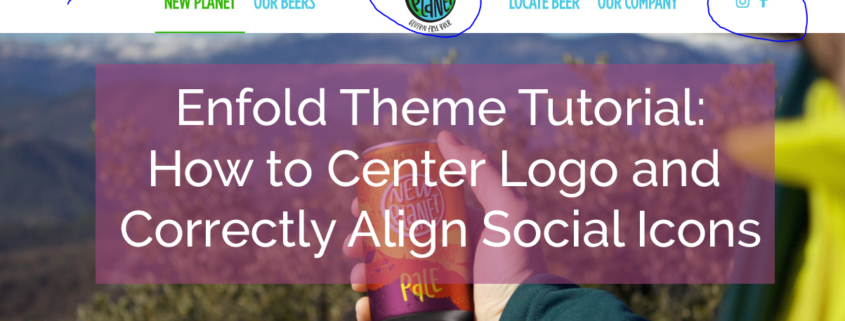
This month we have been asked numerous times for a logo to be centered on the WordPress Website. As we typically utilize the Enfold Theme for our WordPress Websites, we needed to do some customizations to the header and menu to make the formatting work.
It is simple enough, however, with just a bit of CSS to center the logo on the menu so menu items appear on either side (and in line) with the logo image!
/*————————*/
/* CSS – Logo center split menu
/*————————*/
@media only screen and (min-width: 780px) {
/*In the below code nth-child(x) the value of x should be half the number of total menu items*/
#top #header .av-main-nav li:nth-child(3) {
/* Adjust the width of the logo */
margin-right:150px;
}
When a logo is centered on Enfold using CSS, the social media icons appear behind the menu. To fix this, simply add the following to your General Styling Settings under Quick CSS to have the icons Float Right.
#top nav .social_bookmarks { float: right; }
This video tutorial for the Enfold Theme goes into the Header and Menu Settings specifically for:
Appending search icon to the Main Menu (Theme Options – Main Menu)
Adding Social Icons to the Main Menu (Theme Options – Header – Extra Elements)
If there are other items you have questions about on Enfold, please let us know! And don’t forget to subscribe to the Social Speak Network YouTube Channel!
https://socialspeaknetwork.com/wp-content/uploads/2020/10/enfold-theme-menu-customizations.jpg5951203Caitlin McDonaldhttps://socialspeaknetwork.com/wp-content/uploads/2018/04/SocialSpeak-Logo.pngCaitlin McDonald2020-10-14 04:43:472020-10-14 14:58:09Enfold Heading and Menu Settings - Center Logo on Menu
In today’s blog, we’ll be covering six tips to create your healthcare social media plan for 2021. Yes, 2021! We are entering the fourth quarter already of 2020, and it’s really important to be proactive when it comes to your social media strategy. Because the more that you plan, the easier it is.
Social media review
You’ve heard of us talking about this a little bit throughout the year. We always like to do a quarterly check-in and just see what’s working and what’s not working.
So if you haven’t done your review yet, take the time this fourth quarter to really look at each of your social media platforms, (Facebook, LinkedIn, Instagram, Pinterest, Twitter, YouTube), you need to look at their Analytics. Look at each quarter, look at the whole year, look to see what posts have gotten the most engagement, and also look at your Google Analytics to see where that social traffic is coming from.
Are you getting a lot of website traffic from Pinterest or Facebook? Are you getting a little website traffic from Instagram, but you’re getting a lot of engagement? So really looking at each platform, what is working, and what’s not working on each one. Why? It’s because each platform has its own purpose.
Like with Instagram, you may get a lot more engagement, but you’re not gonna get a lot of traffic to your website; whereas Facebook and Pinterest, maybe you get less engagement, but more traffic to your website, so looking at those and looking at them individually and seeing what’s working. So that was number one, doing your social media review.
Content
So after you do your review, make sure you write down what content works the best, and figure out new ways to implement new content for 2021.
So you have to think of what types of posts you’re putting up. Are you doing more personal posts of you and your staff, patient testimonials, and short little videos? Are you doing doctor interviews, patient interviews, educational videos where you are talking, maybe you have a weekly FAQ section?
What are the types of content that you have put out over 2020 and what’s work the best? And then make a list of the content that you want to do more of in 2021 and things you wanna try.
So maybe you’ve just been posting, repurposing content from outside sources, which is great. It’s always good to share articles from your industry, Facebook loves that. But maybe you want to have original content. Maybe you should start blogging in 2021 and have that content go out to social media and drive that traffic back to the website. Think of different types of content that you want to implement into your social media plan for 2021.
Set goals
I know sometimes it sounds so like, “Oh, it’s just social media, we don’t need to have goals.” But you do. You need to really look at how many followers and likes do you have right now, and what’s that number you wanna get to. Sometimes, it’s not always the quantity, it’s more quality.
So you may have 1500 likes, but your engagement with them is amazing. So you may say, “Okay, I’m not really worried about growing my likes on my Facebook page, but I wanna reach even more people.” And so looking at those goals, maybe you tapped into Facebook ads a little bit in 2020, but your goal is to really master Facebook ads where you can see that return on investment, “I wanna grow my email list by 200 people in 2021.”
Well, you’re gonna grow that email list by creating really successful Facebook ads, you’re not gonna grow that email list by just posting. So setting those goals and looking at how you can utilize Facebook ads, Instagram ads, and making sure, looking at the kind of, if you’re new to the Facebook ad world, okay, you may be tapped into it or you boosted a post, but you really didn’t get anything from it.
Let’s dive into that a little bit more. What post did you boost, did you create a specific audience? Sometimes we have clients that say, “Oh, I tried the ad thing, it didn’t work for me.” But they have a brick and mortar practice in one city, but their ad is going out to everyone. So if you have a brick and mortar practice, you wanna make sure that you’re only doing a 25-mile radius and you wanna utilize the tools that Facebook provides you to set that target audience, that’s really important to make sure your ad is going to the right people. So setting those goals for your social media is a really important step.
Make sure you’re reaching your target market
So there’s a couple of ways you can do this. Obviously, a lot by trial and error of what platforms you’re posting to and where that engagement is coming from. You can also do a survey. You should have a patient database or an email list, and you can ask them what social media platforms are they a part of, even if you have, like your sign-in sheet at the front desk, add a couple of columns.
Where are you most active on social media? And just have Facebook, Instagram, and LinkedIn or Twitter, and then ask them. If you have a good relationship with your patients, they already know, like, and trust you, and they want to help you be successful because they’re coming to you for a reason, and hopefully they’re so happy about the results that they have seen with you, that they wanna be able to share your posts and tell their friends and families.
So if you are connecting to them on social media, that’s a great way to create those posts to talk to that target audience. You could also go a step further if you already have a large client database. When you’re looking at those Facebook ads, you could upload a lookalike audience, so it will target people that have the same similarities as that list already.
If you’re putting all this time into Twitter and you’re putting up three or four tweets a day, and you’re following all these people, but you’re not getting any engagement, that may be a platform that you say, “You know what, this isn’t something that is going to work for us, we need to let Twitter go,” or “We’re only gonna post once per week, and we’re gonna focus our time on these platforms.” So just knowing where your audience is at.
If your audience is women and mothers, you need to be on Pinterest. You need to start creating those Pins, especially if you are an OB/GYN or an Endovascular Center that focuses on uterine fibroid embolization, you need to be on there because that’s where women are going.
Pinterest is a visual search engine, just like Google. The demographics on there are about equal, but women have a little bit higher presence on Pinterest, so if women are your target market, you gotta get on Pinterest and Instagram because that’s really where you’re going to reach them.
Look at your competitors
So you wanna see what are they doing. Facebook came out with page transparency about two years ago.
So if you go to a Facebook page on the right-hand side, it will say page transparency. That allows you to see what ads they have running and how they’ve been doing. You can kind of, in a way, spy on what they’re doing. This really gives you a good foundation of what’s working and what’s not working.
If you are an individual healthcare practice, like a Family Medicine Practice, you may wanna look at the larger hospitals of what they’re doing because that would help give you an idea of the content that they’re putting together, the ads they’re running, and then how you can tailor your own ads to reach your target audience.
So it’s really important that you’re always looking at those competitors, both in-state and out-of-state, nationwide, just so you can see, “Okay, well, we did a similar post, but they had a thousand likes and 15 shares and we didn’t have anything, why is that?” And so it allows you to see how things can be done as well. So that’s number five, looking at competitors.
Create your social media calendar
Once you have done all of these steps, you are now at the place, you have your notes, you’ve looked through everything, you have a good idea of what you wanna do, what you wanna implement, now it’s time to go back to that content calendar and create your social media content calendar for at least, at least the first quarter of 2021.
You are gonna create that, we will put a link to a social media content calendar that we use that you can make a copy of, and you’re going to in there put what networks you’re gonna work on, what resources you’re going to share from, what content ideas that you are going to implement, what videos you need to record, what goals you have? You wanna be able to run this many Facebook ads and put everything together.
So come January 1st, and hopefully, before that, you already have your social media posts written for January. You’ve already looked at what those national observance days are for the health and wellness industries so you know what topics you’re gonna talk about. You’ve already spoken to your doctors, your staff, your patients, and you have set up those times to interview them.
Using Zoom to do an interview call is awesome because you’re allowed to talk, they’re allowed to talk, and you can record that and then upload that directly into YouTube and use it as a social media post or as a blog post. So looking at what videos you want to implement and just having everything in that content calendar.
So come 2021, you are ready to hit the ground running and you are organized, so now, if you just do the first quarter of 2021, come February, you wanna start planning the second quarter, so you’re always about six weeks ahead.
And it’s important too because the industries are always changing, there are always new things coming up, and new news stories, so on your content calendar, you may have a place holder for an article or industry tip, and those are things that are gonna be more in the moment post. You may just schedule those a week in advance. But you wanna know your foundation, you’re gonna be able to know the National Observance days, again, the interviews, you can schedule those out, you can talk about, you put together the topics you wanna talk about, create those images in Canva, find that content that you wanna put with it. So you’re just making sure that you are ready for 2021.
Schedule a free consultation
If you need help putting this social media strategy together, we are here to help you. Head on over to socialspeaknetwork.com, and schedule a free consultation today and we can help walk you through what’s the best steps for your business to start and how we can implement a plan for you. So we are here to help you and we look forward to seeing your social media strategy.
https://socialspeaknetwork.com/wp-content/uploads/2020/09/Social-Media-Plan-2021-Blog.png12602240Amber Irwinhttps://socialspeaknetwork.com/wp-content/uploads/2018/04/SocialSpeak-Logo.pngAmber Irwin2020-09-30 12:22:212020-09-25 17:13:46Social Media Plan 2021
When Instagram was launched in 2010, its primary focus was to feature photos that were specifically taken on mobile devices. The platform quickly became known for selfies and food pictures. Later on, it became a marketing platform for businesses and professionals to tell stories, deliver meaningful messages, and engage with their followers. If you play your cards right, Instagram can help you build a huge and loyal community and eventually grow your brand or business.
Unfortunately, Instagram is not the easiest platform to master. Knowing what mistakes to avoid is important to help you succeed on the platform.
Let’s take a look at six common Instagram mistakes that can keep your brand from growing. If you’ve fallen prey to any of these mistakes, be sure to fix them immediately.
Buying Instragram followers
Building a huge following can be a tedious, time-consuming process. But there’s a shortcut. You can buy instagram followers. Yes, you can instantly grow your followers from 100 to 10,000. It can be tempting, I know, but please resist the urge to do so.
You see, bought Instragram followers are not the same as the followers you genuinely acquire through your posts. Why? Because they have zero interest in you. Some of them aren’t even real people. That means they will not engage with you nor buy your products or use your services. What’s the point of having lots of followers when no one seems to be interested in what you have to offer.
Also, Instagram will purge your account once they spot that you have fake followers. Not only will it be a waste of money, but your fake followers will also be removed from the platform one-by-one.
Using poor quality photos
Most people are drawn to beautiful things. The same principle applies to social media, especially on Instagram. If you want to capture your audience’s attention, make sure that your posts are visually appealing. Remember, Instagram is a visual medium.
You don’t need to invest in a topnotch camera to take great photos. These days, your smartphones can take some pretty incredible shots. For best results, use natural light when taking pictures. If you’re taking pictures inside, take them in front of a window.
Not using Instagram stories
If you’ve only been using Instagram to post photos to your feed, you’re missing out on many valuable features the platform has to offer.
Instagram stories allow you to share “moments” of your day quickly and easily. It enables you to show your fun and creative side without affecting your Instagram feed. It’s a fantastic opportunity to experiment and engage your followers in a unique way. It’s fun, colorful, human, and different.
With Instagram stories, you can post as many photos and videos as you want without annoying your audience.
Focusing on photo quality rather than audience value
While photo and video quality is essential, you should also consider the value of the content you’re publishing.
When Instagram users follow you, that means they’re interested in you. They want to benefit from your content. Create quality content that will provide value to your audience and something to engage with. Share industry news. Ask questions. Use quizzes and polls. Get your audience involved.
Don’t just post for the sake of posting. Give people a reason to start following and keep coming back for more. Take time to create posts that your followers actually care about.
Posting duplicate photos
Instagram users want to be entertained. And users follow you because they want to get to know you better. And one of the best ways to do so is by telling stories, sharing updates about your practice, or your recent offers.
Instagram users will be quick to unfollow you if you’re continually posting duplicate photos and videos. Come to think of it. Why should they bother following you if you’re not sharing anything fresh, new, and exciting?
No link in bio
Traffic is the lifeline of all businesses, be it online or offline. After all, you can’t generate sales when there is no one to sell to.
Your Instagram bio provides a small window of opportunity to tell prospective clients and patients everything they need to know about you and your practice. So make sure you have a link in your bio at all times. Used correctly, it can help drive traffic to your website and convert leads to patients.
https://socialspeaknetwork.com/wp-content/uploads/2020/09/Instagram-Mistakes-Blog.png12602240Kathlyn Angeles-Timbolhttps://socialspeaknetwork.com/wp-content/uploads/2018/04/SocialSpeak-Logo.pngKathlyn Angeles-Timbol2020-09-23 12:42:552023-03-17 12:36:186 Instagram Mistakes That Keep Your Brand from Growing
Today, I am going to be talking to you about using Search Engine Optimization strategies in Pinterest marketing. 2020 has created a very interesting landscape for business owners, and this is because we no longer have to stay focused on reaching clients in our local geographic area. Because of telehealth and platforms like Zoom, we can really look and start expanding and reaching people nationwide. Pinterest is a fantastic way to go about doing that because you aren’t necessarily going to reach people within your geographic location. Because of the use of Zoom, clients are used to working with people who really could be anywhere. They’re used to getting information from online, rather than going and sitting down with an individual. So 2020 has really created this landscape where even as a small business who really works with individuals locally, you now can really extend that net a lot wider, and Pinterest creates the perfect opportunity to do search engine optimization and reach the folks who are specifically looking for your product, your services, and your expertise. How Pinterest search algorithm works is it looks at four different top things:
The domain quality
The pin quality
The Pinner quality
The Topic relevance.
Let’s dive into these individually. The first item is domain quality, this is really to ensure that the websites that have pins coming from it are highly ranked in terms of Pinterest, so if you have never pinned before, if you’ve never claimed the website before, anything like that, Pinterest is less likely to show your pins to other users in Pinterest.
So how do you improve your domain quality in the eyes of Pinterest?
How to Increase Domain Quality on Pinterest
Well, the first thing to do is to convert your Pinterest account to a business account. This provides a lot more tools and resources such as the analytics and things like that, so there’s a lot more reason to do this. However, doing this well really just allow you to be more legitimate in the eyes of Pinterest as well. Once you convert your Pinterest account to a business account, you then need to claim your website, so this basically is like adding a verification emblem almost to your website to make sure that Pinterest knows that you are the one who’s actually creating the content on the site and then pinning it. And it’s pretty easy to do, typically, it’s just that HTML file that you load up through your file manager on your website, so you can do this via FTP or just logging into the C-panel of your hosting account, clicking File Manager and then uploading it to the root directory. Click a button on Pinterest, it’ll automatically verify your site.
Claim Website on Pinterest to Increase Pinterest SEO
The next item is, once you claim your website, you then have the opportunity to create Rich Pins, so when you are pinning, make sure that you are creating rich pins. We’ve talked about this in other episodes before, and the process for doing it, but let’s say you’re a dietician or nutritionist and you have posted a recipe on your website. The rich pin, then actually grabs the information from that recipe and showcases it directly on Pinterest. This helps having rich pins and information like this helps your pin to stand apart against others, it also it makes it so that that pin has more engagement in interactions. To increase your domain quality, we also recommend pinning often, so this helps you just create more engaged users, and then also Pinterest does reward people who spend time on their platform.
And then the last thing to increase the domain quality is to pin high quality content. So you want to pin content that will drive people to your website and get more interaction, the more interaction you get, the more Pinterest will recognize your domain. So the second item is the pin quality, so you want to make sure that the quality of your pins is high. The pin quality is really determined by the popularity of your pins and the engagement level of your pins, so you want to make sure when you’re pinning something that you have a nice title, for example, a title that somebody is going to want to click on to learn more, so you can try a lot of different types of titles on there, a lot of different types of image structure on there, but you want to make it so that when somebody sees your pin, they’re probably going to recognize that to you and click the pin because they know that they’re going to find the high quality content on the other side.
Use High-Resolution Photos on Pinterest with Text Overlay
We recommend for these pins to use a high resolution photo to make sure it’s either square or tall, so a two to three ratio is typically good, then use text overlays so that you have the title of the blog post or more compelling the information for why somebody should click it or save it. Then we recommend putting either just text on there that says your website URL or that has your logo on there, and that’s for that brand recognition. And then if you do have some sort of freebie or give away on your site, I also put a little snippet of text about that as well. And so when you do that, you can use variety of different tools. We often use Canva, but there are others out there to create different versions of this pin, and so as you’re pinning all of them, you’ll be able to see which ones are getting more engagement, then start making more that are similar to that.
Pinner Quality to Increase SEO on Pinterest
The next thing is the Pinner quality. Pinterest, again, likes people and accounts that are active on Pinterest, so you wanna make sure that you are active on Pinterest, so we utilize tailwind as a way to make sure that we are pinning and re-pinning other popular pins, and then you also need to create fresh content. On most networks, there’s a variety of different types of users, there are some users that just sit back and launch, there are other users who are creating content, and then there are other users who both create and share content. So that’s the type of user you want to be on Pinterest, and so when you are pinning, you need to make sure that you pin things to correctly categorize boards, and this just shows your audience as well as Pinterest, that you have some sort of strategy and rationale behind the things that you are pinning.
Use Pinterest analytics to determine which pins are trending, then you can create more pins for that blog post, for example, or pin similar pins to it. And so this is something that we highly, highly recommend doing on Pinterest. The next thing is the topic relevance, and so your goal when you are creating a pin should be to have pins that relate to other pins that are being searched for and re-pinned, and then one way to do this is to do a search on Pinterest and see what specific keywords and phrases are coming up, then you can look at pins that are coming up for that. If you find that some of them aren’t really related, that might be a great opportunity to create a blog post and a pin that does directly relate to there.
Increase Your Pinning Topic Relevance on Pinterest
Now, one thing that we recommend doing is having either a similar image, which graphically Pinterest will recognize as being similar, but then also making sure that you’re utilizing the right keywords in your description as well as in the link and the text and everything surrounding the pin, so that Pinterest really sees that your pin is related to that other pin. To find these keywords, again, just make sure that you are utilizing Pinterest search feature and just start typing in items and it will, just like Google’s, it will come up with recommended searches that other people have done and that are popular on the network. Another place to optimize for these keywords is in your business name, your profile, bio, and then also the specific boards and descriptions that you have on Pinterest.
All of these things working together can help you to increase your Pinterest search engine optimization. And because Pinterest is really a visual search engine that we’ve talked about in the past, it can be one of the top, it can quickly turn into one of the top traffic sources for your business as well. So as we close out, I wanted to give just a couple of more ways that you can make your website a little bit more Pinterest-friendly. So after you have claimed your website and enable the Rich Pins on there, make sure every blog post that you write has a variety of different pins loaded into the content and pinnable content, you can then also add a plug and if you’re using WordPress to enable share buttons, so somebody can quickly easily click the Pinterest share button and pin the image.
Consider Adding Prompts in Text to Pin Now and Read Later
You can also even add text near different parts of your content that say something along the lines of “Pin it now for later”, and this is a great way to get other people to pin it because maybe they don’t have time to read a 10,000 word blog post, so by adding these pins within the content, or pictures within the content with “Pin it, save it for later” text report, you’re just reminding people that they can, in fact, click to pin and save the blog post so that they can come back to it later. Additionally, the last thing that I want to also say is, if you have something like an e-commerce store, typically, we always recommend having the product images, the square. Sounds good, right?
If you think in the lens of Pinterest, you might want to actually play around with having those vertical images, so the 2 x 3 ratio, and so these vertical images of your products might potentially help you rank higher on Pinterest, so you have the picture gallery of all the pictures, just try loading them in different size and see if more people start pinning them. This is something that we are starting to play with for our clients who are utilizing Pinterest and have something like a Woo Commerce or Shopify shop.
Thank you so much to tuning in, and I hope that this gives you some insights into how Pinterest can help you drive more traffic to your website, now that 2020 has really opened up the geographic landscape for the people that you can help. I look forward to seeing you next time on The Social Speak Network podcast.
https://socialspeaknetwork.com/wp-content/uploads/2020/09/pinterest-seo.png12602240Caitlin McDonaldhttps://socialspeaknetwork.com/wp-content/uploads/2018/04/SocialSpeak-Logo.pngCaitlin McDonald2020-09-16 13:09:272020-09-16 13:14:55Pinterest SEO in 2020